What is a 2FA setup key, and how do you enter it in an authenticator app?
Updated 9 October 2026 · Novaz steps checked against version 1.0.3
When you turn on two-factor authentication with an authenticator app, the website gives your app a setup key: a secret that only you and the website know. Your app combines it with the current time to make each code. The QR code a website shows contains the setup key. The text version, under a link such as "Can't scan the code?", is the same key written out.
Websites call it different things: "setup key", "secret key", "text code", "manual entry key" or "2FA secret".
What a setup key looks like
Setup keys are written in base32:
- the letters A to Z and the digits 2 to 7,
- usually 16 to 32 characters, often in groups, for example
JBSW Y3DP EHPK 3PXP, - never the digits 0, 1, 8 or 9.
If you're copying a key by hand, the usual mistakes are the letter O for zero and the letter I for one. Since 0 and 1 never appear in a key, it's always the letter. Spaces and upper or lower case don't matter.
Keep it secret
Anyone who has your setup key can make the same codes as you, for as long as 2FA stays set up with that key. Treat it like a password:
- don't send it in a message or paste it into a website you don't trust,
- don't keep it in a screenshot or a note that syncs everywhere,
- if you think it has leaked, set up 2FA again on the website, which creates a new key.
Settings that come with a typed key
A QR code carries the key and its settings: how many digits, how often the code changes, and which hash algorithm. A typed key is just the key, so the app uses the standard settings: 6 digits, every 30 seconds, SHA-1. That's right for almost every website. If a website says its codes have 8 digits or change every 60 seconds, add it from the QR code instead.
Entering a key in Authenticator App - Novaz
- Tap +, then Enter key manually.
- Fill in Service (the name you'll see in the list), Account (optional: the username or email you sign in with) and Setup key.
- Tap Save, then type the code Novaz shows on the website to finish setting up 2FA.
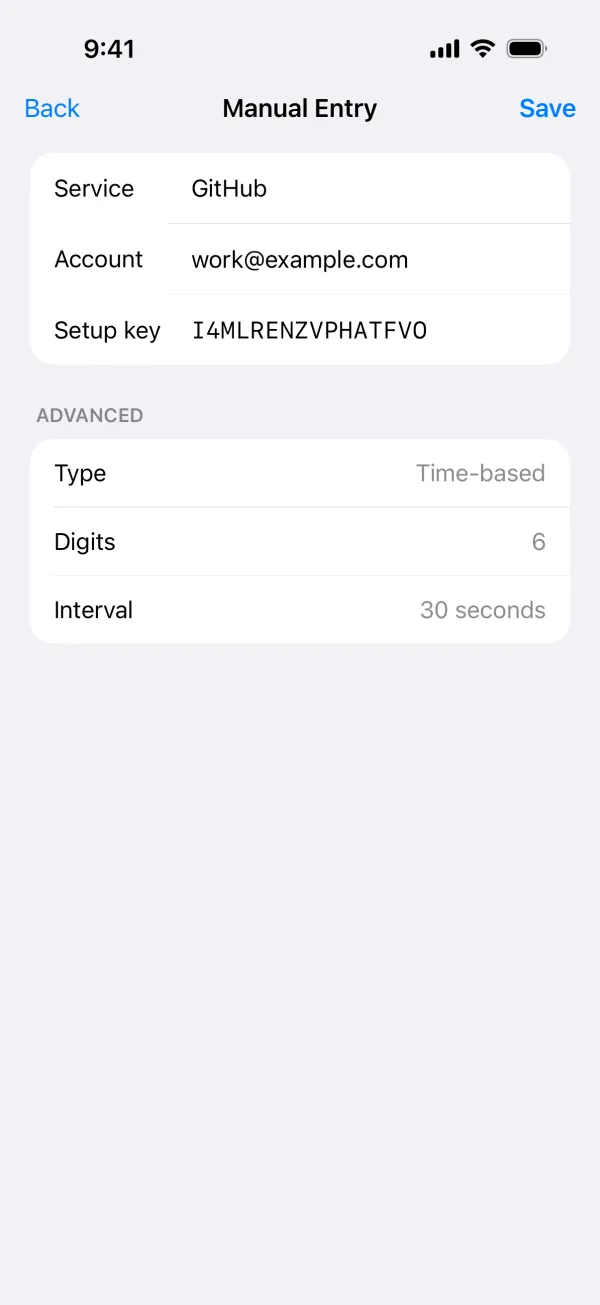
If the key isn't valid base32 or is shorter than 16 characters, Novaz shows "Setup keys use base32 (A–Z, 2–7) and are at least 16 characters." and doesn't save it.
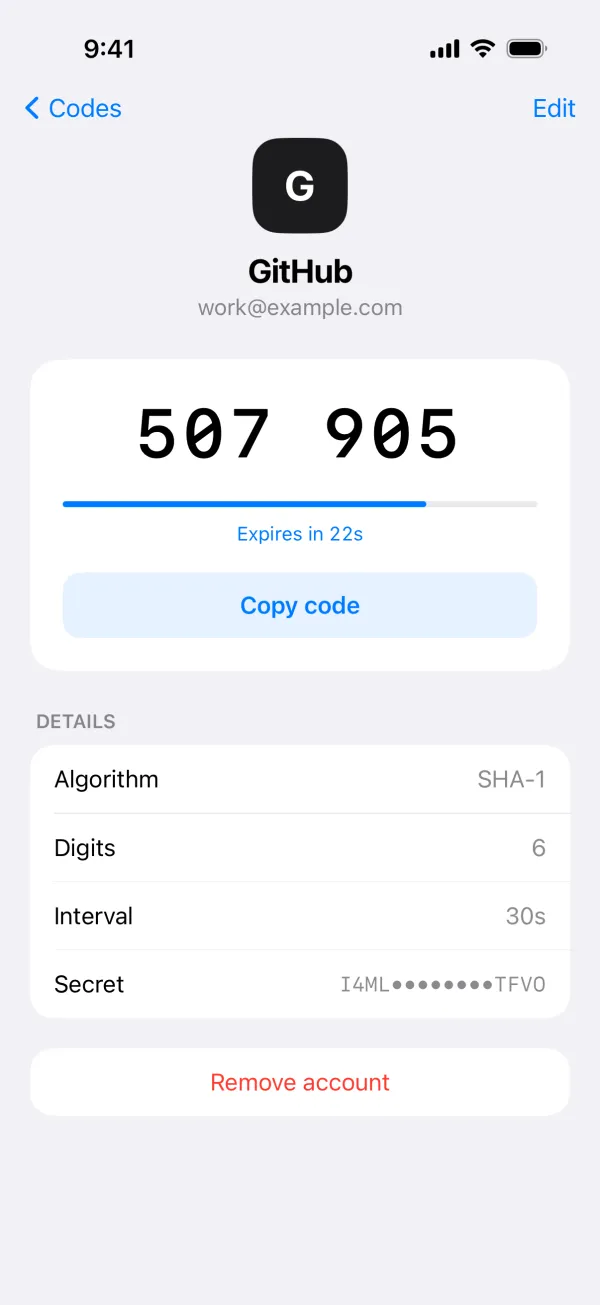
The Advanced section shows the settings every manually entered account uses: Time-based, 6 digits, 30 seconds. They can't be changed there. To check what an existing account uses, tap it and look under Details.