
How to scan a 2FA QR code that's on your iPhone's own screen
Updated 9 October 2026 · Novaz steps checked against version 1.0.3
Websites assume you'll scan their 2FA QR code with a second device. If you're setting up two-factor authentication in Safari or an app on the same iPhone as your authenticator, you can't point the camera at your own screen. There are three ways around it.
Option 1: Take a screenshot and import it
Many authenticator apps can read a QR code from a photo.
- When the website shows the QR code, take a screenshot: press the side button and the volume up button together.
- Open your authenticator app and look for an option to add from a photo or image.
- Pick the screenshot, then type the code the app shows on the website to finish.
In Authenticator App - Novaz: tap +, then Choose a photo, and pick the screenshot. Novaz finds the QR code and adds the account ("Service added"). It doesn't ask for access to your photo library: iOS's photo picker gives the app only the one image you choose. If there's no readable 2FA QR code in the image, Novaz says "No setup QR code found in this image."
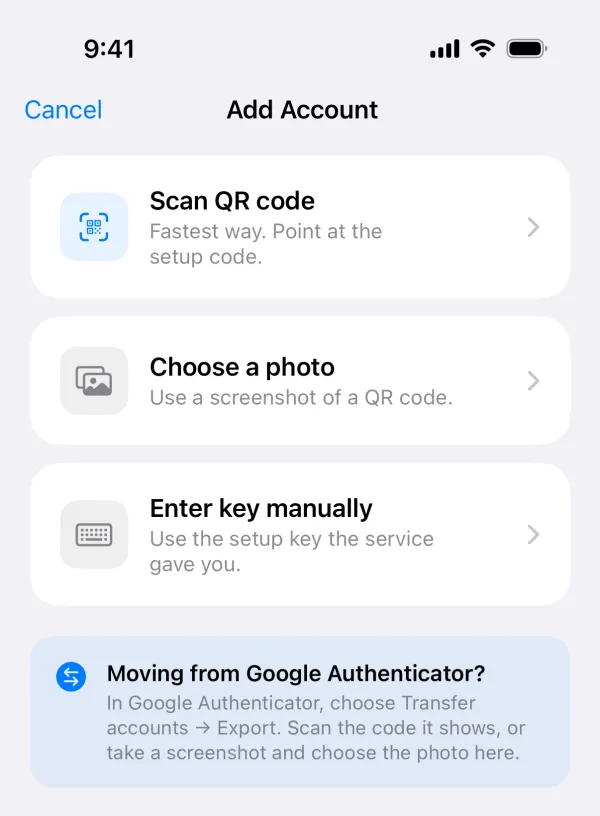
Option 2: Copy the setup key instead
Under the QR code, most websites have a link such as "Can't scan the code?" or "Enter a key instead". It shows the same secret as text. Copy it and paste it into your app's manual entry screen. See What is a 2FA setup key? for what to check.
Option 3: Open the website on another device
Sign in on a computer or tablet, open the 2FA settings there, and scan the QR code with your iPhone's camera as usual.
Delete the screenshot afterwards
The screenshot is your setup key. Anyone who gets a copy can make the same codes as you. Delete it from Photos, then delete it again from the Recently Deleted album. If iCloud Photos is on, the screenshot is uploaded to iCloud until you do.
The same applies to screenshots of Google Authenticator's export codes. See How to transfer Google Authenticator codes.