
2FA code not working? 6 fixes for authenticator apps on iPhone
Updated 9 October 2026 · Novaz steps checked against version 1.0.3
Authenticator apps make time-based one-time passwords (TOTP). Each code is calculated from two things: a setup key that you and the website share, and the current time. If either one doesn't match what the website expects, the code is rejected, even though it looks perfectly fine. These fixes apply to any authenticator app. At the end of each one we note what's different in Authenticator App - Novaz.
1. Your iPhone's clock is off
Codes only work within a few seconds of the correct time. A clock that's 30 seconds off is enough to break them. This often happens after you set the time by hand, while travelling, or after a battery has completely drained.
Fix it on the iPhone: open Settings > General > Date & Time and turn on Set Automatically.
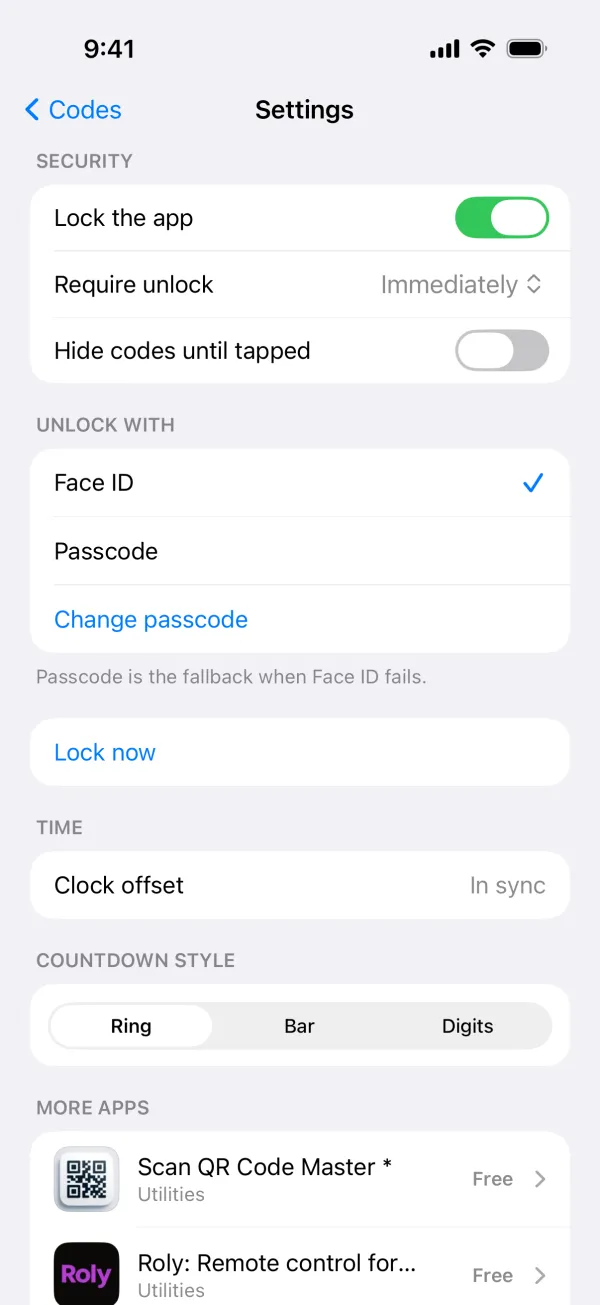
In Novaz: the app checks your clock when you open it, at most once every 10 minutes. It does this by reading the time from an empty request to apple.com. If your clock is 15 seconds or more out, Novaz shows a banner, "Device clock is ns off", with a Sync button. Sync corrects Novaz's own codes for the difference. To see the last measurement, open Settings and look under Time at Clock offset.
2. You're using the code for a different account
If you have two accounts with the same service, for example a personal and a work Google account, check the account name under the service name before you copy the code. Searching the app for the email address you sign in with usually finds the right one.
3. 2FA was set up again, so the old key is dead
Every time you set up an authenticator app on a website, the website creates a new setup key and stops accepting codes from the old one. If you (or someone helping you) turned 2FA off and on, or started a new authenticator setup, the old entry in your app now makes wrong codes. Delete it and add the account again from the new QR code.
4. The code expired while you typed
Most codes last 30 seconds. If you start typing near the end, the code can expire before you submit it. Wait for a fresh code, or copy and paste it.
In Novaz: codes turn red in their last 5 seconds. A copied code is removed from the clipboard when it expires.
5. The website uses non-standard settings
Almost every website uses 6-digit codes that change every 30 seconds, made with SHA-1. A few use 8 digits, a 60-second interval or SHA-256. A QR code carries those settings with it. A setup key typed by hand usually doesn't, so the app falls back to the defaults and makes the wrong codes.
Fix: add the account from its QR code instead of the text key.
In Novaz: keys entered manually always use 6 digits, 30 seconds and SHA-1. Accounts added from a QR code can use 6 to 8 digits, 1 to 300 seconds, and SHA-1, SHA-256 or SHA-512. Tap an account to see its settings under Details.
6. The website doesn't use standard codes
Some services make their own kind of code: Steam Guard, for example, or counter-based codes (HOTP) that change each time you press a button instead of on a timer. Standard authenticator apps, Novaz included, can't make those. Use the service's own app or method.
Still locked out?
- Use one of the backup codes the website gave you when you turned on 2FA. Then set up 2FA again.
- If you have no backup codes, use the website's account recovery process.
- Never give your codes or setup key to anyone who contacts you about the problem. Real support teams don't ask for them.