
How to transfer Google Authenticator codes to another app on iPhone
Updated 9 October 2026 · Novaz steps checked against version 1.0.3
Google Authenticator can export your accounts as one or more QR codes, using a feature called Transfer accounts. The QR codes contain the setup keys, so an app that can read them gets working codes straight away. You don't have to visit every website and set up 2FA again.
Step 1: Export from Google Authenticator
- In Google Authenticator, open the menu and choose Transfer accounts, then Export accounts.
- Select the accounts you want to move and continue.
- Google Authenticator shows a QR code. If you selected many accounts, it splits them over several QR codes and shows which one you're on, for example 1 of 3.
Google's own instructions are on its help page.
Step 2: Import into the new app
Your new app must be able to read Google's export format. The QR codes start with otpauth-migration://, not the usual otpauth://. Not every authenticator app can read this format, so check the app's help pages.
In Authenticator App - Novaz:
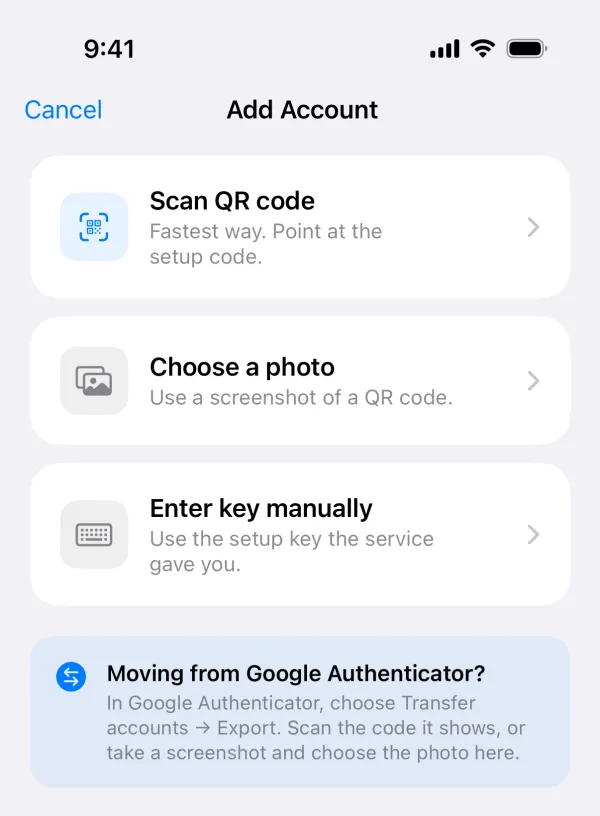
- Tap + to open Add Account.
- If Google Authenticator is on another device, tap Scan QR code and scan the export code. If it's on this iPhone, take a screenshot of the export code, then tap Choose a photo and pick the screenshot.
- If there are more codes, Novaz says, for example, "Code 1 of 3 imported. Add the next one." Show the next QR code and add it the same way.
- After the last one, you'll see "Added n accounts".
What Novaz skips:
- Counter-based (HOTP) and MD5 accounts. Novaz only makes time-based codes (TOTP).
- Accounts it already has, so importing the same code twice doesn't create duplicates.
- Anything over the free limit. The free version holds two accounts, and Novaz shows the upgrade screen when you reach it.
Step 3: Check, then clean up
- Open a few accounts in both apps and check that the codes match.
- Delete any screenshots of the export codes, and remove them from Recently Deleted in Photos too. They contain the keys for every exported account.
- Exporting doesn't remove anything from Google Authenticator. When you're sure the new app works, delete the accounts there if you want them in one app only.
If you want to see which accounts an export QR code contains before importing it, our 2FA QR code decoder reads it in your browser without uploading it.
Moving the other way
Novaz 1.0.3 can't export accounts. To move an account from Novaz to another app, set up 2FA again on that website with the new app.