
How to move your authenticator app to a new iPhone without getting locked out
Updated 9 October 2026 · Novaz steps checked against version 1.0.3
Losing 2FA codes during a phone upgrade is one of the most common ways people get locked out of their accounts. Whether your codes come across depends entirely on how your authenticator app stores its setup keys. Check this before you erase or trade in the old iPhone.
Find out how your app stores its keys
Authenticator apps do one of three things:
- Back up or sync the keys to an account or to iCloud. On the new phone, you sign in or restore, and the codes come back.
- Export the keys as QR codes or a file, which you then import on the new phone. Google Authenticator's "Transfer accounts" works this way. See How to transfer Google Authenticator codes.
- Keep the keys on one device only. Nothing is copied to a backup, so on a new phone the app starts empty, and each account has to be set up again.
Your app's settings or help pages should tell you which one it does. If you can't tell, assume the third.
Authenticator App - Novaz does the third. It stores keys in the iPhone Keychain with "this device only" protection. They aren't synced through iCloud Keychain and aren't moved by Quick Start or by restoring a backup. Version 1.0.3 also can't export them.
Before you start
- Keep the old iPhone working and unlocked until you've finished every account.
- Install your authenticator app on the new iPhone.
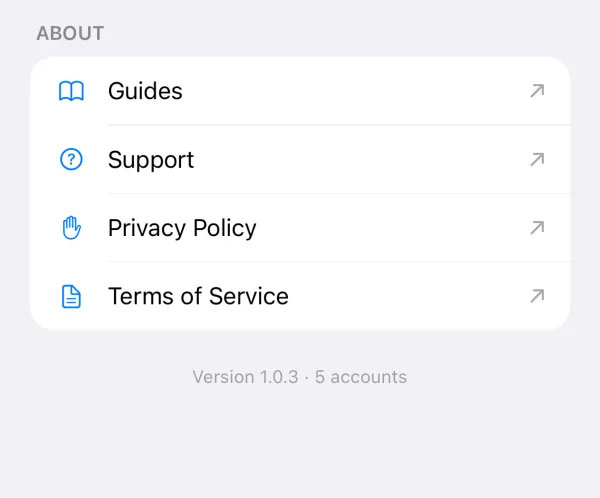
- Make a list of the accounts in the app. In Novaz, the count is at the bottom of Settings, for example "Version 1.0.3 · 5 accounts".
If you pay for Novaz PRO, it comes with you: subscriptions belong to your Apple Account, not to the phone.
Move each account
If your app keeps keys on one device, repeat these steps for every account:
- Sign in to the website on a computer or the new phone and open its two-factor authentication settings.
- Choose the option to set up the authenticator app again. Websites call it something like "change authenticator", "replace device" or "add authenticator app". Some make you turn 2FA off and on again.
- Scan the new QR code with the app on the new iPhone, and type the code it shows to confirm.
- Sign out and back in with a code from the new iPhone, to be sure it works.
- Delete that account from the old iPhone's app. Its old key no longer works anyway.
Some websites let you keep more than one authenticator at a time. Others replace the old one as soon as you set up the new one. Either way, finish each account before you start the next.
If the old iPhone is already gone
The keys it held are gone with it. For each account, sign in with one of the backup codes the website gave you when you first turned on 2FA, or use its account recovery process. Then set up 2FA again on the new iPhone.
Next time you turn on 2FA anywhere, keep the backup codes somewhere other than your phone.